Duplicate records, people with no company attached, billing addresses you can't find: managing your Odoo contacts (“odoo contacts”) is often an afterthought—until it slows down your sales and skews your CRM. A clean contact database, on the other hand, saves time across the whole company.
This guide isn't about “what a contact is.” It shows, step by step, how to structure, clean and use your contacts in Odoo. Screenshots are taken on Odoo 19, but the Contacts app is stable: everything works from version 14 through 19, with a few notes where the interface differs.
1 Company vs individual: structuring your contacts
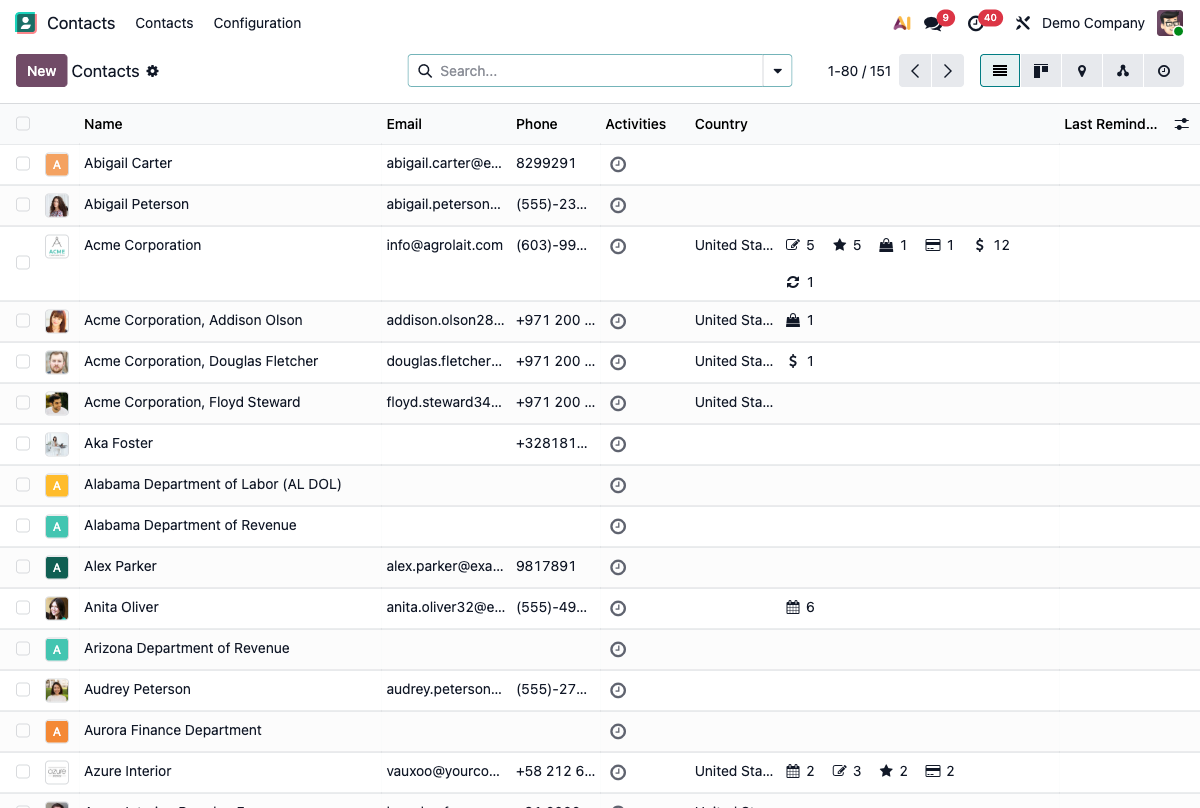
First, a fact specific to Odoo 19: the contact form no longer shows an explicit “Individual / Company” switch. That's a change from versions 14–18, where you set the type with a radio button at the top of the record. In Odoo 19, a contact created from the Contacts app is treated as a company by default—you'll see a small building icon next to the name.
So the hierarchy—not a toggle—is what separates companies from people. The reliable way to add a person is from their organization: open the company, go to the Contacts tab and use Add Related Contacts. Each person is then attached to their company, and you can find everyone from the company's record. You can also link an existing person to their employer through the Company field on their record.
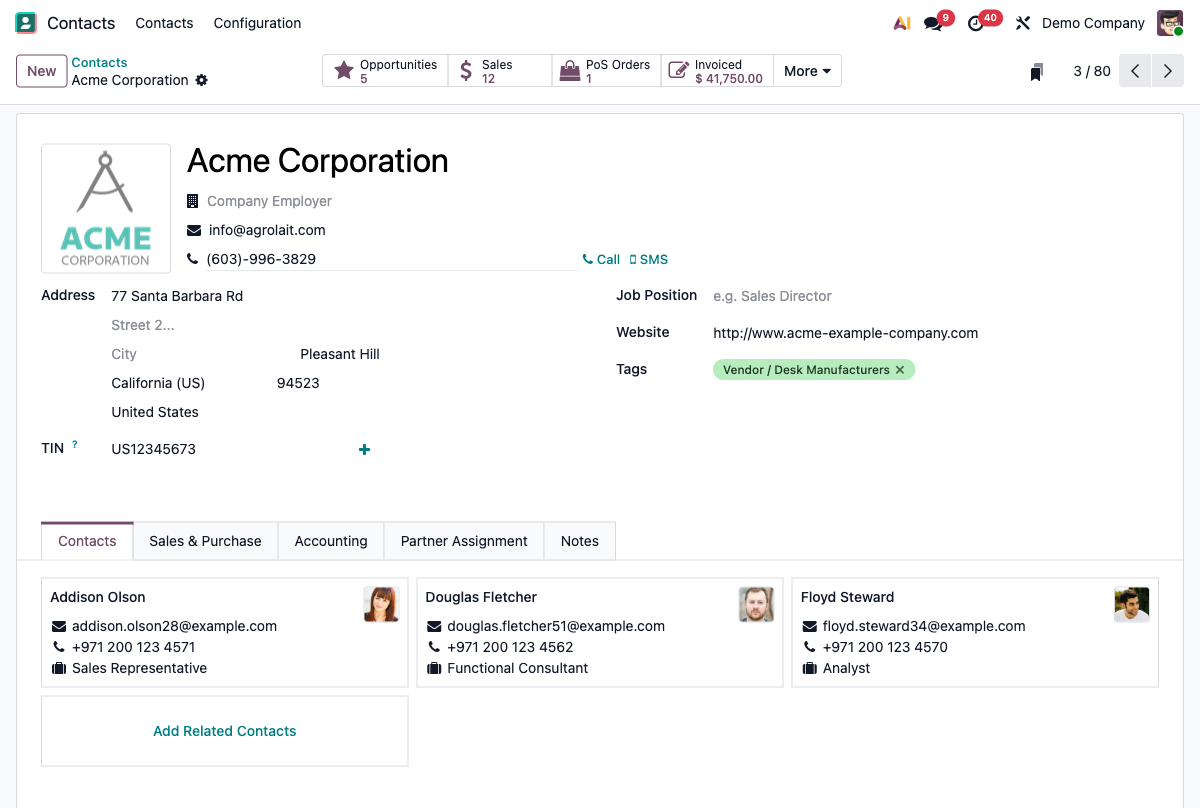
One company can have several addresses. When you add a child contact, Odoo offers four address types—pick the right one, because it's the one used automatically on quotations, invoices and delivery orders:
- Contact: a person at the organization (sales rep, support, manager).
- Invoice Address: where invoices are sent.
- Delivery Address: where goods are shipped.
- Other: any additional address (a secondary warehouse, etc.).
2 Managing duplicates: how to merge them
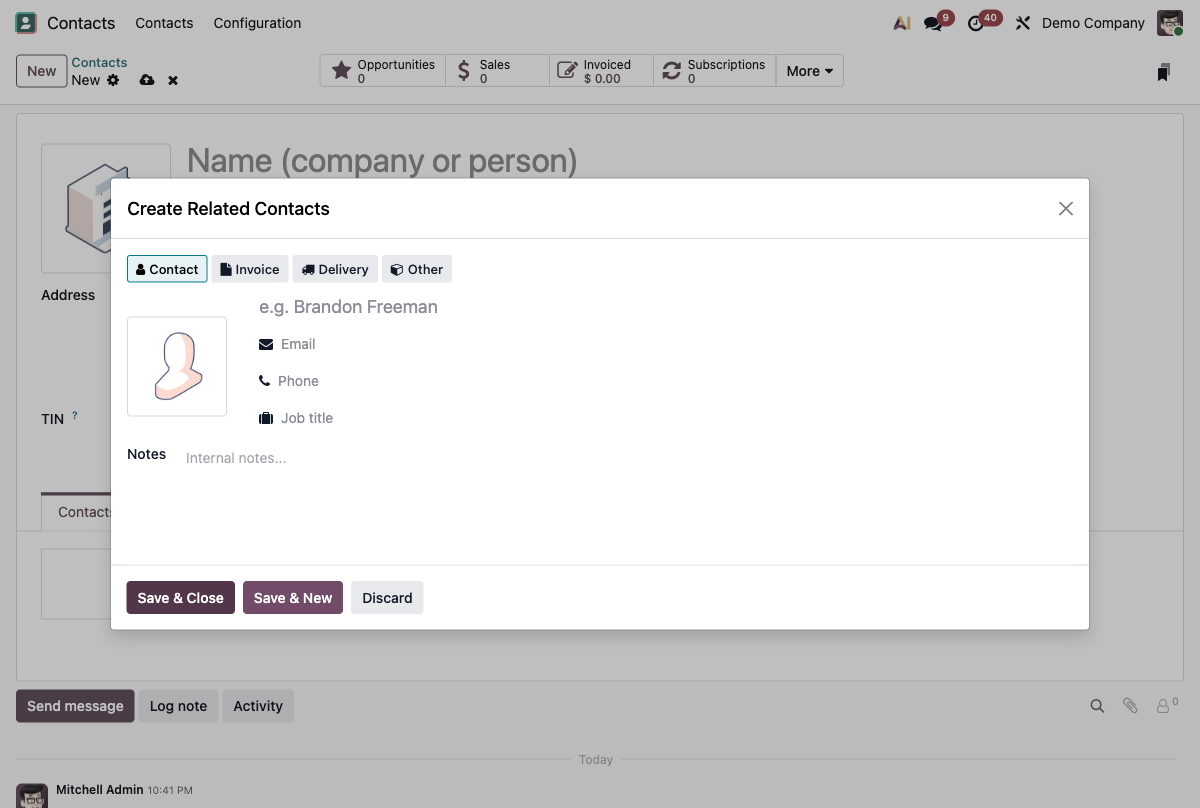
Duplicates are the most painful problem—and the least explained. Two records for the same customer, and your history splits in two: half the emails here, half the orders there.
Where do they come from?
- Leads and opportunities converted more than once.
- Website forms and shopping carts.
- Repeated imports of spreadsheets.
- Incoming emails that create a contact automatically.
The good news: Odoo ships with a merge tool. Here's how:
- Open the Contacts app in list view.
- Tick the contacts you want to merge (at least two).
- Open the Actions menu and choose Merge.
- Pick the destination contact (the one that will be kept), review the list, then click Merge Contacts.
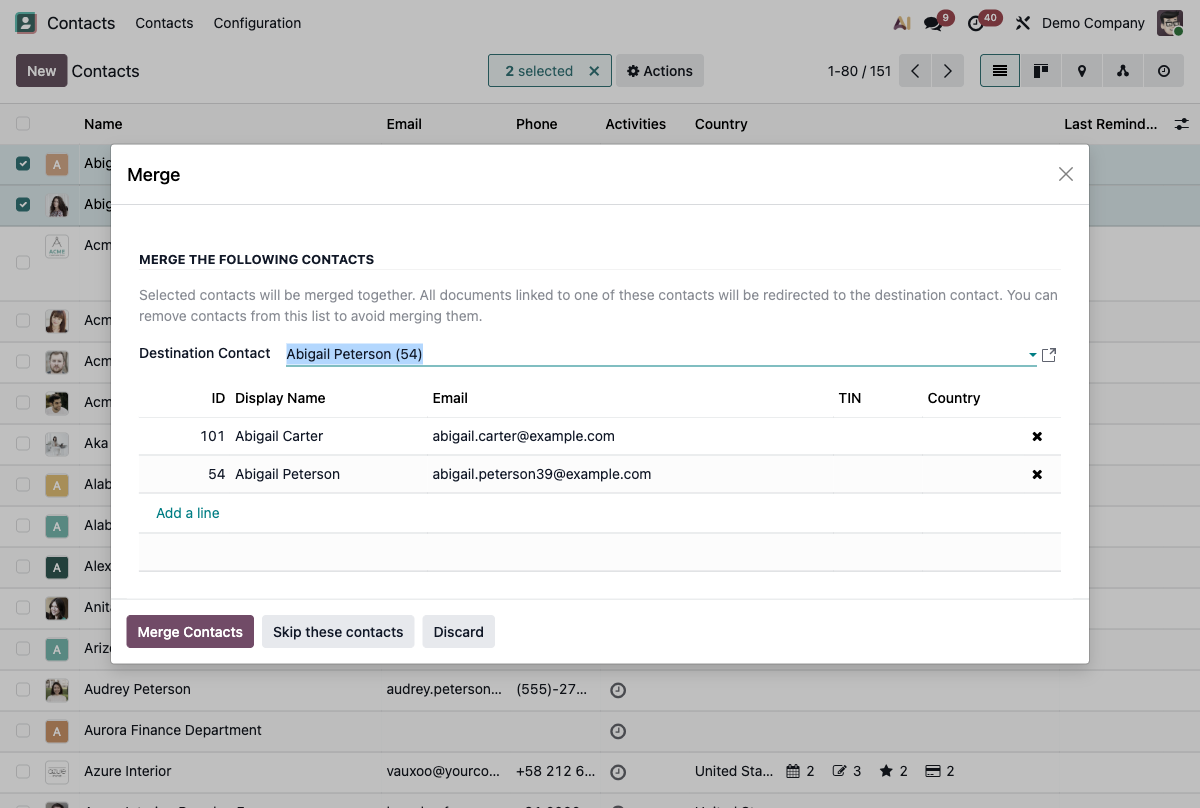
From version 14 to 18 the tool lives in the same place: select records in list view, then the Action(s) menu. The screen was modernized in v17-19, but the principle is identical. All linked documents (orders, invoices, emails, opportunities) are automatically reassigned to the kept contact.
3 Organizing at scale: tags and categories
The company/person hierarchy describes structure; tags describe everything else. A single contact can carry several tags—“VIP”, “Reseller”, “Newsletter”—without touching the hierarchy.
You manage the tag list under Contacts ▸ Configuration ▸ Contact Tags, with a color to spot them at a glance.
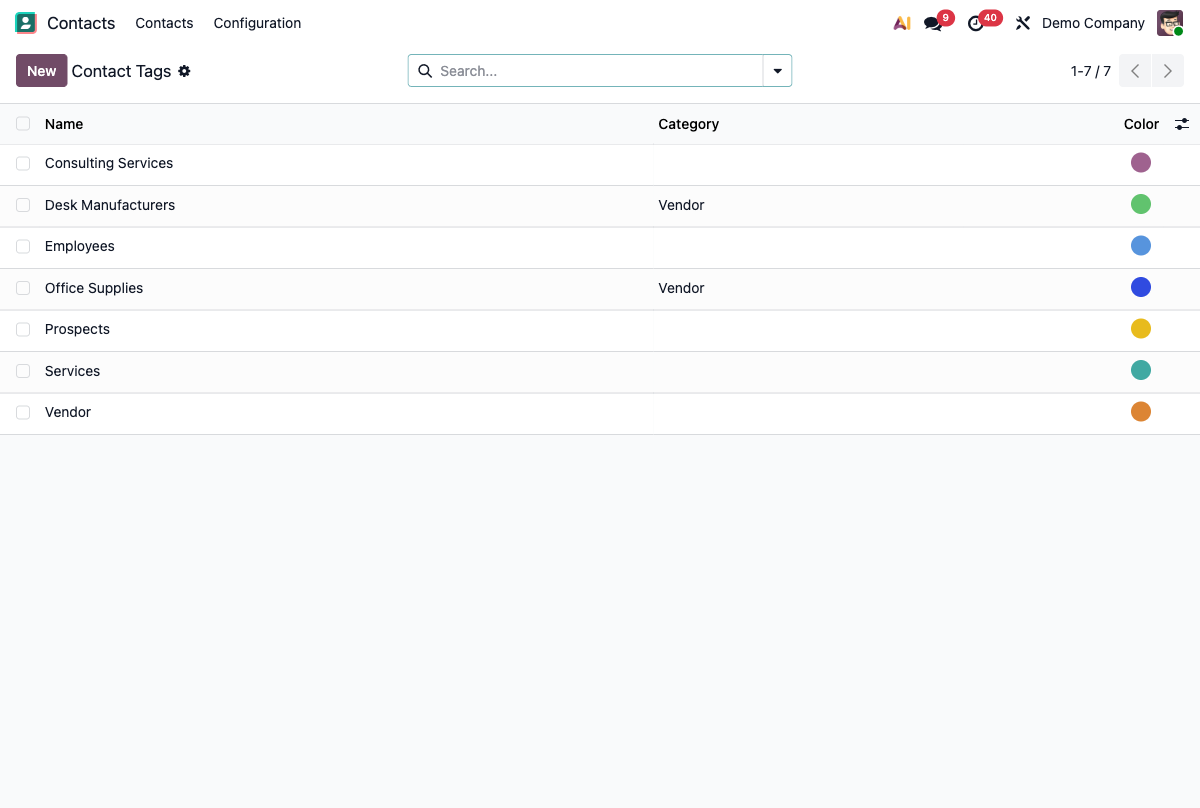
The point is filtering and segmenting: in list view, use Filters and Group By to isolate a tag, then save the filter as a favorite. In two clicks you get the list of all your resellers, or all customers in one region—ready to reuse for an email campaign or an export.
4 Following up a contact: chatter, activities and history
Every record has a chatter: the thread at the bottom (or right) of the record. There you log an internal note, schedule an activity (call back, follow up) and track the full history—including the emails exchanged. It's the living “file” of the contact: everything that happened, in one place.
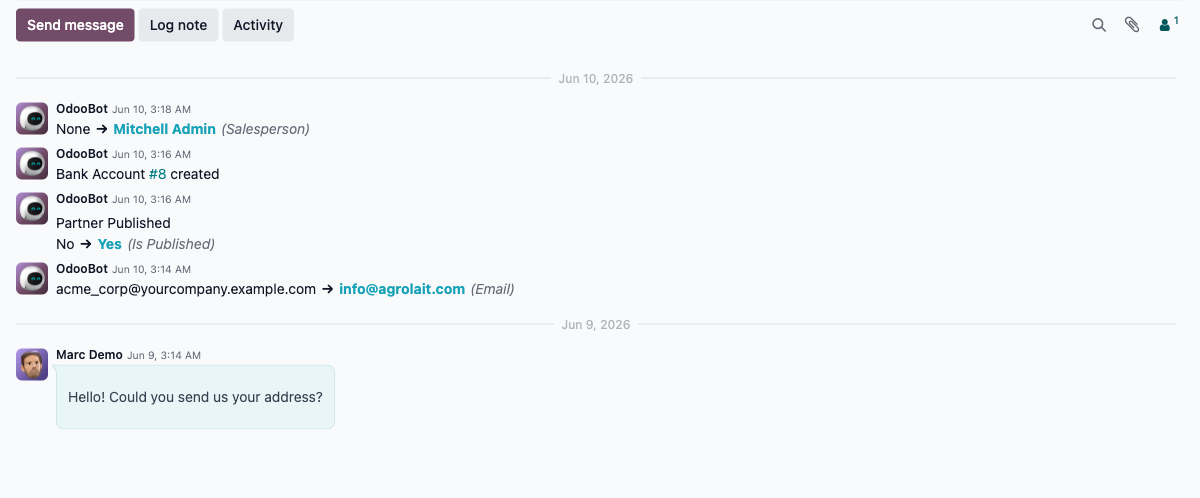
The catch: those emails live in Gmail and never reach the contact's record unless you log them by hand. You can also save the email to the Odoo contact's record in one click, without leaving Gmail, with our extension.
5 The contact: the backbone of Odoo
A contact is never isolated: it's the pivot that links CRM, Sales and Invoicing. An opportunity, a quotation, an invoice, a ticket—they all point back to the same contact record.
Hence the simple rule: a complete, clean contact = a clean CRM. Every minute spent structuring your contacts pays off on every quote and every follow-up, because the whole chain relies on this data.
6 Hygiene best practices
A few habits keep your database healthy over time:
- Fill in the email and the country: these are the key fields for deduplication and segmentation.
- Attach each person to their company (parent/child relationship).
- Use the right address type (invoice, delivery) instead of piling everything onto one record.
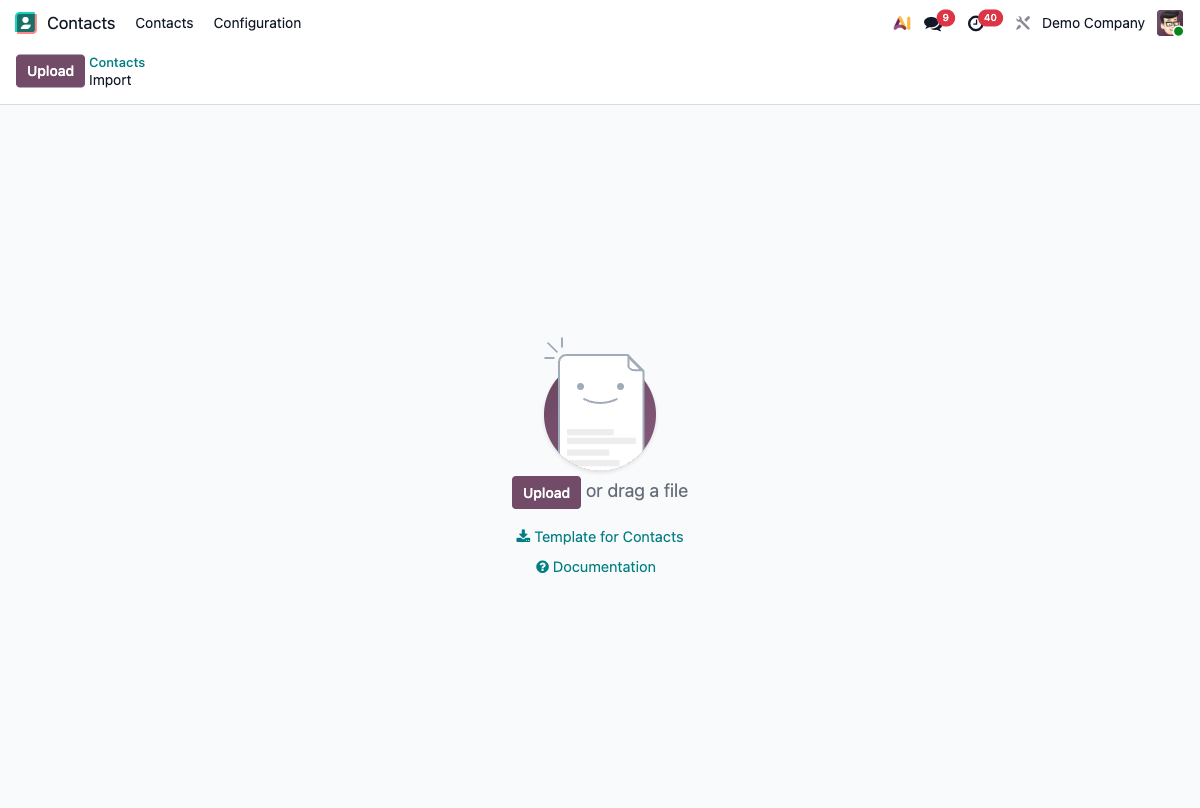
- On import, map the email column carefully and use the External ID to update existing records instead of creating new ones.
- Run the merge tool regularly to clear out duplicates that slipped through.
7 Frequently asked questions
Company or individual: which should I choose in Odoo?
Odoo 19 no longer has an explicit Individual/Company switch on the form (it existed as a radio button in versions 14–18). In practice, model an organization as a top-level contact and a person by linking them to their company: create the company first, then add people as child contacts from the company's Contacts tab, so each person is attached to their organization.
How do I merge duplicate contacts in Odoo?
Open the Contacts app in list view, tick the contacts to merge, then open the Actions menu and choose Merge. Pick the destination contact to keep, review the list and click Merge Contacts. All linked documents are reassigned to the kept contact. The steps are the same from v14 to v19.
How do I save an email to a contact's record?
Odoo keeps emails in the record's chatter, as long as they're logged there. Inside Odoo, the chatter lets you send or log a message. To capture emails that live in Gmail, install Odoo Integration for Gmail: the extension shows the Odoo record next to your inbox and logs the email to the contact in one click, without leaving Gmail.
What is the difference between a contact and a lead/opportunity?
A contact (res.partner) is a stable record for a person or company you work with. A lead or opportunity (in CRM) is a potential deal moving through your pipeline, usually linked to a contact. One contact can generate several opportunities: the contact is the durable data, the opportunity the transient sales process.
How do I import contacts without creating duplicates?
Download Odoo's import template, map the email column correctly, and use the External ID column on re-import to update existing records instead of duplicating them. Odoo has no single anti-duplicate checkbox: after a large import, run the Merge tool from the contacts list to clean up whatever slipped through.
You manage your Odoo contacts but live in Gmail?
See the contact's record and save your emails to Odoo in one click—without switching tabs.
Install the extension